Feature Flags
Work in progress can be hidden behind feature flags. This is useful for complex features that may take some time and multiple iterations to get fully working.
A feature flag can be toggled from the “Feature Flags” tab of the Implementer Tools. That toggle is stored in the browser’s localStorage, so it applies to that browser profile rather than to an OpenMRS user account. Feature flags can also be enabled for everyone through the app shell configuration key Enabled feature flags; see the Configure O3 overview for implementer-facing configuration. The app shell can only enable flags that have already been registered. If a configured flag has not been registered, the app shell logs an error and leaves that flag off.
The main feature flag APIs are registerFeatureFlag, useFeatureFlag, and getFeatureFlag.
Use getFeatureFlag only after the flag has been registered. For React UI, prefer useFeatureFlag; it safely returns false when a flag is absent.
Using Feature Flags
Let’s say you have built a page for your laser optometry clinic, and are working on adding functionality supporting a planned service where you give people laser eyes. This functionality is contained in the component LaserEyeInstallation. We’re going to create a feature flag called laser-eyes, which will allow administrators to preview the component before it is rolled out to everyone.
There are two steps: the feature flag must be registered, and then it can be used with useFeatureFlag. For Core v5+ modules, prefer declaring the feature flag in routes.json so it is available as soon as the routes registry is processed.
{
  "featureFlags": [
    {
      "flagName": "laser-eyes",
      "label": "Laser Eye Installation Service",
      "description": "Adds a form and relevant patient diagnostic information relating to the planned Laser Eye Installation Service to the laser optometry clinic management page."
    }
  ]
}
If you need to register a flag from code, registerFeatureFlag(flagName, label, description) is still available from @openmrs/esm-framework. Registration preserves the current enabled state, so it is safe to register the same flag more than once during app startup.
You can also attach a registered flag directly to an extension definition in routes.json:
{
  "extensions": [
    {
      "name": "laser-eye-installation-link",
      "slot": "laser-optometry-actions-slot",
      "component": "laserEyeInstallationLink",
      "featureFlag": "laser-eyes"
    }
  ]
}
The extension system will omit that extension until the flag is enabled.
Now the feature flag will appear in the Implementer Tools as shown below:
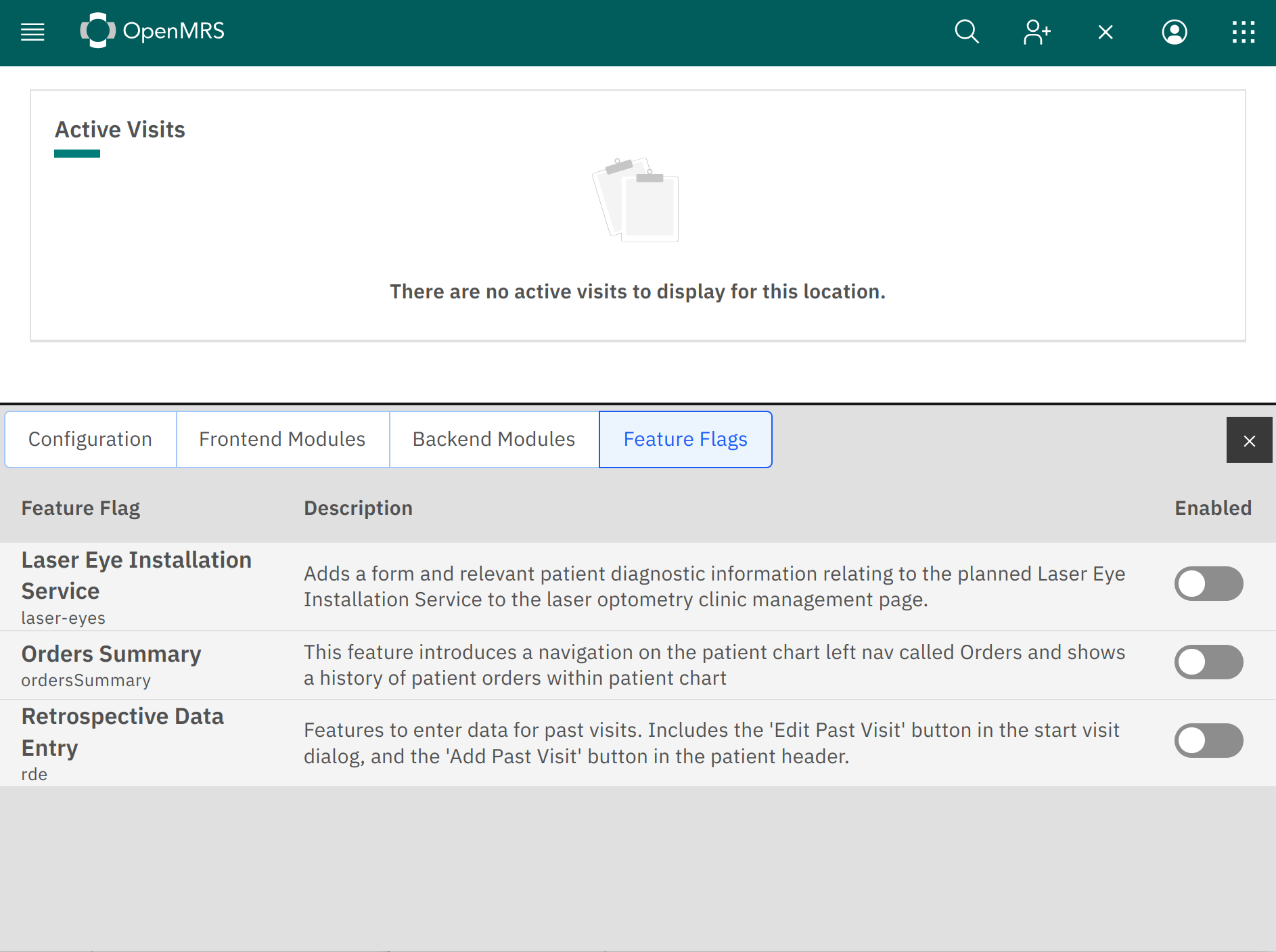
Now that the feature flag is registered, we may use it to control the visibility of the LaserEyeInstallation component.
import { useFeatureFlag } from "@openmrs/esm-framework";

export default function LaserOptometryClinicManagement() {
  const isLaserEyeInstallationEnabled = useFeatureFlag("laser-eyes");

  return (
    <div>
      <h1>Laser Optometry Clinic</h1>
      <AstygmatismTreatment />
      <MyopiaTreatment />

      {/* Work in progress */}
      {isLaserEyeInstallationEnabled ? <LaserEyeInstallation /> : null}
    </div>
  );
}
useFeatureFlag returns false when the flag is off or has not been registered, so guarded UI should be written to behave normally when the flag is absent.
Now you can deploy changes to the laser optometry app which include this in-progress code, and users will not see the feature hidden behind the flag. Administrators can open the Implementer Tools and toggle the “Laser Eye Installation Service” feature flag in their browser to preview the feature locally. Implementers can enable the same registered flag for everyone through app shell configuration once they are ready.
Here’s a cool explainer video about feature flags by Brandon: